Built-in App Features
This page does not cover plugins. It covers the features the app itself gives players: what each one is, where to find it, and what is worth knowing about it.
Text and stage views
At the top of the game screen, there are two buttons: "Text" and "Stage". "Text" is a text view you read one page at a time. "Stage" is a full-screen picture with a background and portraits. Both views show the same game, and you can switch between them at any time.
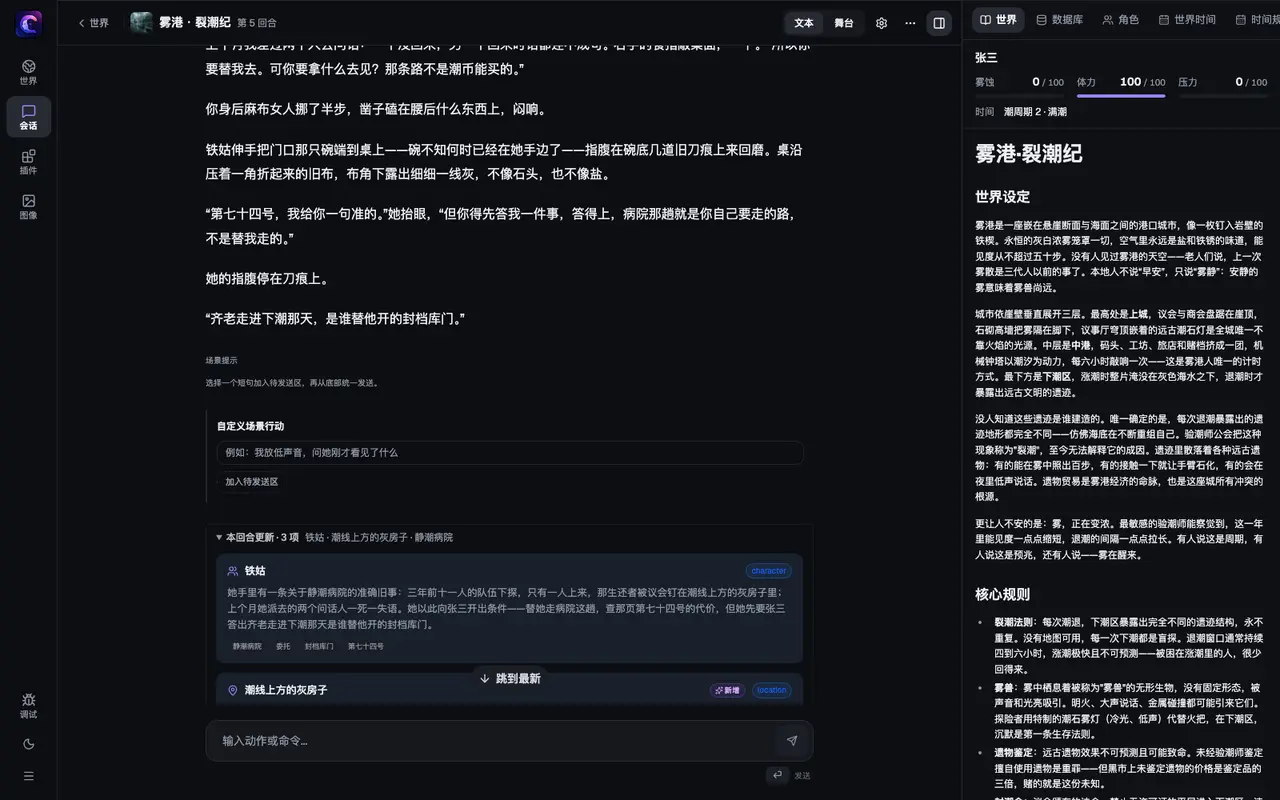
For details on the stage view, see Stage and Sound.
Appearance
Find it under "Settings", in "Appearance". "Style" decides the layout and visual style of the whole interface. It takes effect as soon as you select it. Below it you can fine-tune colors, fonts and more. "Color scheme" lets you choose light or dark.
In "Theme Library" you can "Import theme". Imported themes are saved on this device and appear in the Style list. To make your own theme, see Themes.
The settings search shows keyboard focus. Configuration sources use segmented buttons that show the selected option. Screen readers announce the current state of model capability and dark-mode toggles. Results of saving and importing are announced too. When a theme supports only one color mode, its toggle explains why it is unavailable.
AI Create World
On the world selection page, click "AI Create World". Write a "Core Direction", under "Player Experience" choose the gameplay pack the world is made for (the choices are the app's gameplay packs, such as "Traditional Story", "Dialogue Mode" and "Low Cost"), and tick what to generate together: "Main Cast", "World Lorebook", "World Rules", and "Opening Kit". In "Author Notes", you can write what must appear or what to avoid. Click "Start Building". The app then writes the content, checks it for consistency, and packages it as a world package.
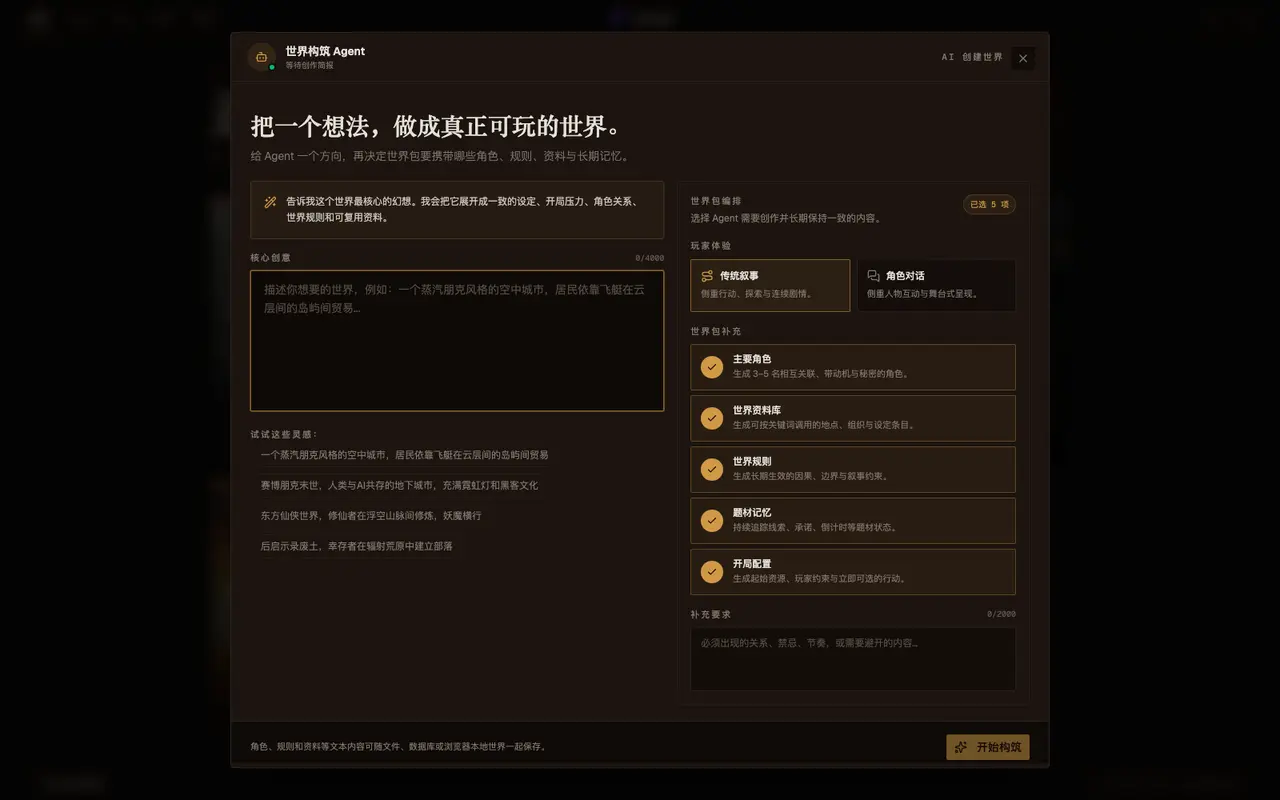
Generation uses model calls. If the model produces no output for a long time, you can increase "World authoring: wait for the model (seconds)" in the settings.
Worlds generated in the app can be revised in "Revise this world" on their detail page. Write your request and click "Apply the change". While a revision runs, you can click "Cancel". Your request stays in the box so you can edit it and retry.
When the world dimension editor has unsaved changes, clicking "Cancel", navigating to another page, or going back asks whether to discard them. Choose "Keep editing" to retain the drafts; the browser prompts before reloading or closing the page. This also protects incomplete form input and unapplied JSON. For JSON edits, click "Apply definitions" before saving.
Session-prep screen: choose plugins and gameplay packs
After you choose a world and click "Enter", you reach the session-prep screen ("Session Setup"). Here you decide which plugins are on for this game.
- At the top, you can choose a gameplay pack, such as "Traditional Story", "Dialogue Mode", "Low Cost" or "Narrative Only". Choosing one turns on all the plugins it includes; some packs also turn plugins off.
- "Back to the minimal set" keeps only the narrative plugins and the plugins that they and the world require, and turns everything else off.
- Below is the plugin list. You can tick plugins one by one. The top shows "x/y plugins selected".
- When a world has its own defaults or recommendations, the list marks them as "World default" or "Recommended by world".
- "Customize plugins and advanced settings" has more detailed options.
After you confirm, click "Start Game". If this is your first time playing, the gameplay pack the world recommends is a good choice. For what each plugin does, see Built-in Plugins and Features.
Use a different model for a task
Different tasks can use different models. For example, you might use a better model for writing the story, and a cheaper, faster one for organizing world material.
- Global settings: in "Settings", under "LLM" → "Providers & Models", set up your providers and models, and choose a model for each model role. For first-time setup, see Connect a model.
- A single task: on the session-prep screen, each plugin task has a "Model" option. You can change it to another model role. The new choice is used from the next turn.
For details on model roles, see Model roles.
Retry
After stopping the opening, choose "Continue" beside "Stopped; turn not committed" to generate it again. If you stop before a turn starts, the message you just sent returns to the input box, preserving any newer text you typed. You can edit it before sending again.
Models sometimes fail. The app only redoes the part that failed, so the parts that succeeded are kept.
- When one task fails, click "Retry this task" to retry only that task.
- When several tasks fail, click "Retry failed tasks". The story text and other completed results are kept.
- Before retrying, you can click "Change model / parameters" to switch to another model, or lower the output limit. The retry uses the current settings.
- If opening setup fails, the notice at the top explains why. For key, permission, endpoint or rate-limit errors, click "Model settings" to fix the problem, then "Retry setup". It only runs unfinished steps. Expand execution records for details; during setup, retry from the top notice.
- If a turn fails, the recovery notice at the top shows the cause recorded by the task. Expand it to read the original error. For key, permission, endpoint or rate-limit errors, open "Model settings" before retrying. While the recovery notice is visible, retry from there. Execution records keep a summary and expandable details.
- Key, permission, quota and rate-limit errors name the provider. If several model uses in this session share it, the notice lists them, such as Story and Plugin tasks. For key authentication failures, "Model settings" opens "Providers and models". Fixing the shared key applies to all those uses. The list follows current settings; failure details keep the provider and model used at the time.
- If the app stops unexpectedly, unfinished tasks stop, and the progress that was saved is kept. A new attempt starts only when you click "Retry unfinished turn".
Debug page
In the "More" menu on the game screen, there is "Debug Traces". You can also open /debug directly. It lists the run record of each task in each turn, along with model calls and retries. Use it to find the cause when something goes wrong. In the same menu, you can switch between "Detailed view" and "Raw view" to see something closer to the raw data.
Interface language and translated worlds
In "Settings", "Interface Language" decides the language of buttons and labels. Currently there are Simplified Chinese, English and Русский. Languages marked "experimental" only have the interface translated. The instructions the model reads are still in English, so the quality of the story depends on the model.
The interface language and the story language are different things. The content language of a game is set when it starts, and it must be a language the world already has. If a world only has another language, you are asked "Continue with a <language> world?" before entering. You can also click "Translate to <language>" on the world's detail page to add a language version of the world.
Translation is done by the model you configured, so it uses model calls. After translation, check the names of people and places and the tone yourself, since machine translation can get them wrong. For the language rules, see Internationalization.
Install plugins and worlds
In "Settings", "Install & manage" can install plugin packages, world packages and collection packages from GitHub or from ZIP files, and can uninstall them. New worlds are available immediately; installing or removing plugins requires a backend restart. Third-party plugin code also needs session authorization, which can be granted automatically under the trusted-source policy. For detailed steps, see Install plugins and worlds.
The packaged desktop app can restart its bundled backend. A desktop shell running from source does not own the external development server, so restart buttons in Desktop and Install & manage are disabled. Restart the server in the terminal running pnpm dev instead.
Export and import settings
Under "Data" in "Settings". "Export settings" saves the settings on this device as a JSON file, which you can use as a backup or move to another device. The default file does not include API keys. Tick "Include API keys (sensitive)" to include them. Keep this file safe.
When importing, choose the file first. In the preview, tick the items you want to apply, then click "Apply". The selected items overwrite the current values, and the other settings stay the same.
Next
Session orchestration settings
Open “More” → “Studio Config” in the game toolbar, then find “Orchestration” under “Loaded Plugins”. A sole policy provider resolves automatically: its name and settings link appear without a provider selector or Save button. Multiple providers show the “Turn policy” selector, offering “Automatic selection” or an exact authorized service. A saved paused or unavailable selection stays visible and never switches automatically; clear the selection to resolve automatically again. “Distinct characters (0–16)” and “Child calls (0–64)” bound delegation per execution, defaulting to 4 and 16; zero disables the corresponding capability. Changes start next execution and survive reloads and forks.
These generic controls install no new policy, character plugin or play pack. Plugins use them only when they offer the corresponding capabilities. Authors can read the orchestration contracts.
Creation roles and independent saves
Play as defaults to Player on preparation, with Game master and Spectator choices. It applies only to new sessions and grants no server administration rights. Plugin selection controls stay disabled while the plugin plan loads. Edit them after the default composition appears so loading cannot overwrite your choices. Host/spectator recipes omit player creation; disable it during preparation when choosing Game master in the ensemble recipe.
Orchestration groups Turn policy, distinct characters, sub-agent calls and Automatic rounds. Save each field independently. Policy/caps use the orchestration route; Automatic rounds uses ordinary session PATCH. A failed field retains its draft/error while successful fields remain saved, followed by authoritative reloads; there is no joint rollback. The provider-settings link opens its own strategy fields. Multiple providers require an exact choice. Paused/stale selections remain visible and clearable without activation or approval.
Actor/call caps apply per execution; Automatic rounds counts additional executions per input. Zero disables the respective capability. Changes apply to the next applicable execution/input, leaving a running chain’s frozen limit intact. Every game view retains progress and Stop advancement; new input also ends the old automatic chain.